For serious carp anglers, accuracy is everything. Whether you are fishing at distance, targeting a clear spot between weed beds, or returning to the same productive area session after session, a reliable bait boat can completely change the way you approach the water.
A bait boat is no longer just a simple delivery tool. Today, it can help you place rigs with confidence, deliver bait accurately, explore new areas, mark productive spots and build a more consistent fishing strategy. That is exactly where the BEETACKLE Bait Boat Icon Edition has been designed to make a difference.
Why a bait boat matters in carp fishing
Carp fishing often comes down to location and presentation. Casting is still an important skill, but there are situations where a bait boat offers a clear advantage. It allows you to place your rig and bait with controlled precision, especially when fishing at long range, close to features, or in areas where repeated casting could disturb the swim.
With a bait boat, you can quietly deliver your rig, control the amount of bait you introduce, and return to the same area more consistently. For many anglers, this means less guesswork and more confidence in every session.
Designed for practical performance on the bank
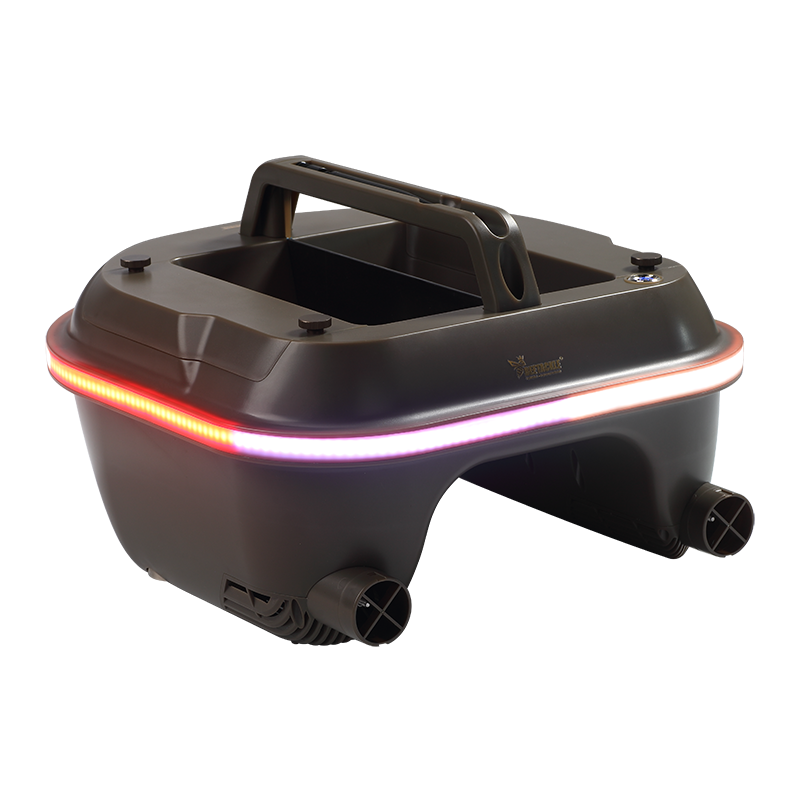
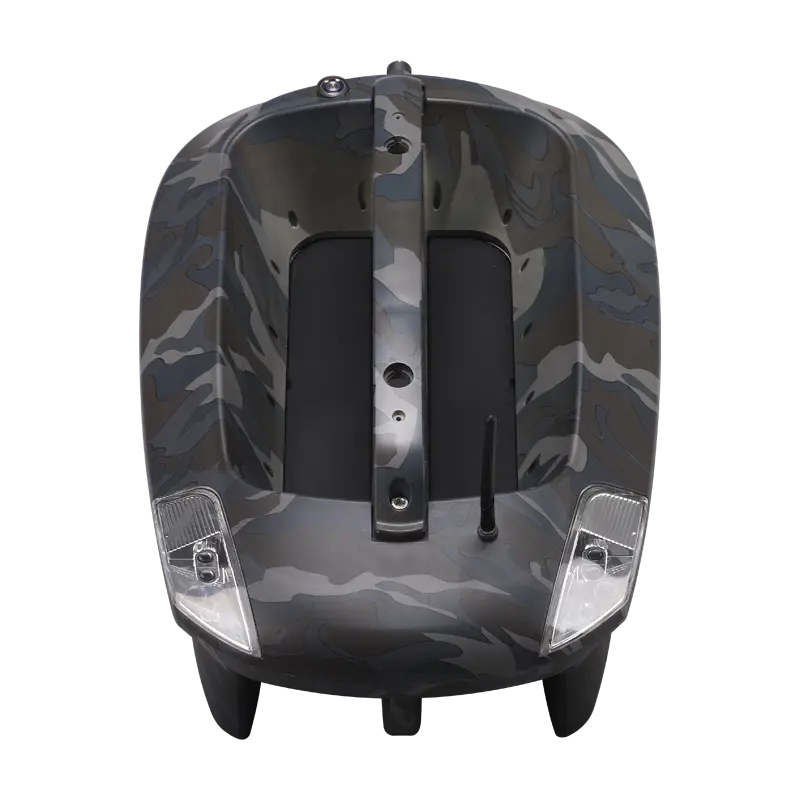
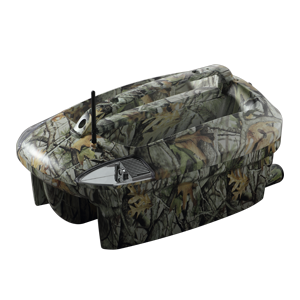
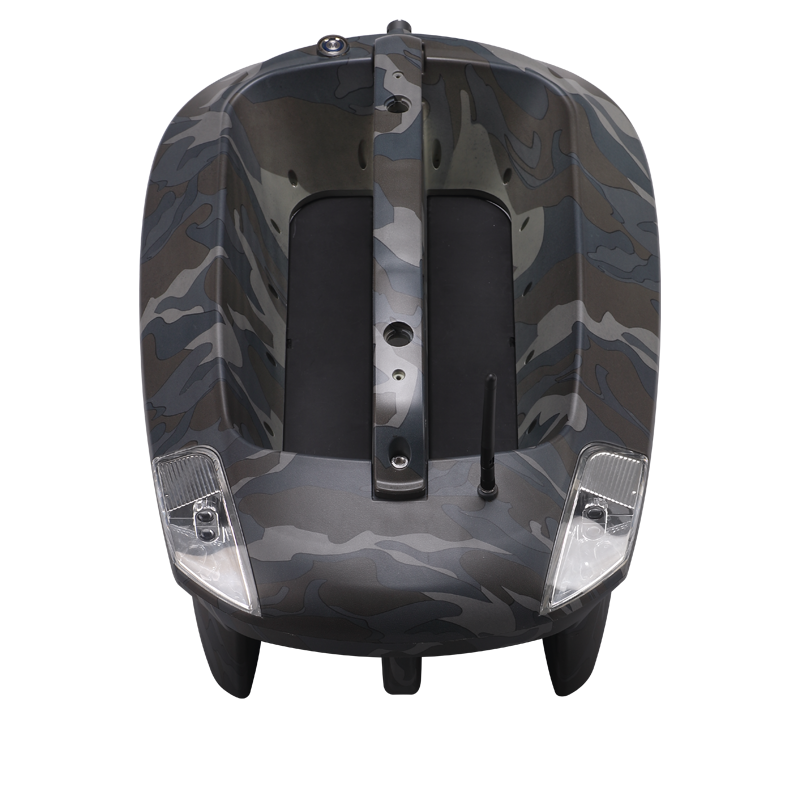
The BEETACKLE bait boat has been engineered to balance capacity, size and control. It weighs around 5 kg including the battery, measures 550 × 370 × 230 mm, and can carry over 4 kg of bait, giving anglers strong baiting capacity without turning the boat into an oversized, difficult-to-handle unit.
This balance is important. A bait boat should be large enough to carry what you need, but compact enough to transport, launch and control easily. The Icon Edition is built for real carp fishing sessions, where reliability and ease of use matter just as much as specifications.
GPS, Autopilot and Action Group control
One of the biggest advantages of the BEETACKLE bait boat platform is its upgradeable smart control system. Every BEETACKLE bait boat comes with a built-in GPS module, and the Autopilot feature can be activated through the BEETACKLE Fish Finder App.
With Autopilot enabled, anglers can benefit from point-to-point navigation and one-touch control. The system also supports Action Group technology, allowing the boat to perform a sequence of commands, such as navigating to a spot, releasing bait and returning home. Each Action Group can support up to 20 commands, helping anglers simplify repeated operations on the water.
This is especially useful for anglers who fish regular venues, return to known spots, or want to reduce manual control during long sessions.
One-hand handset control
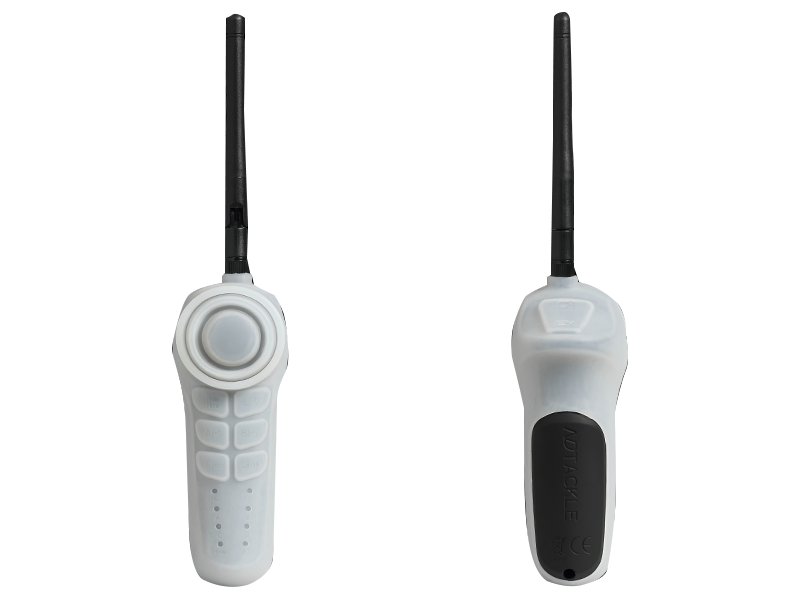
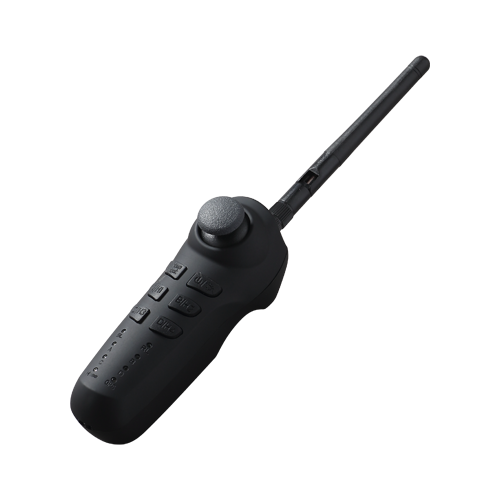
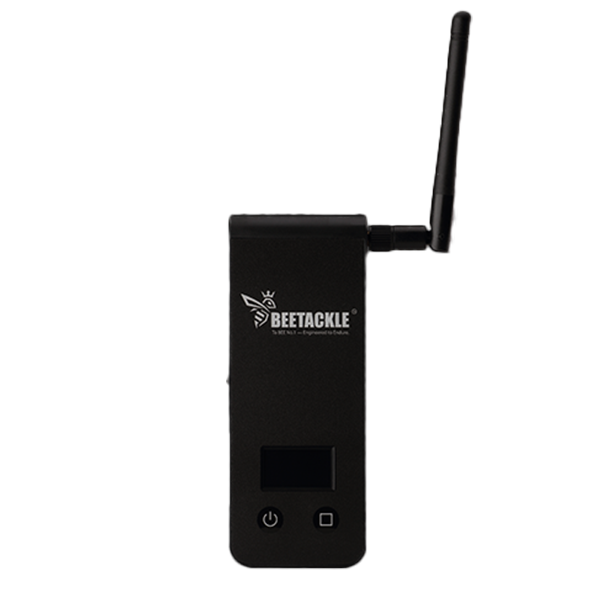
Traditional bait boat handsets can sometimes feel bulky or overcomplicated. BEETACKLE focuses on simple, practical control. The handset is designed for precise one-handed operation, allowing anglers to control the boat while keeping the other hand free.
The control range is listed at 200–300 m depending on the environment, making it suitable for many open-water carp fishing situations. With Autopilot enabled, anglers can also assign up to 5 favourite locations to the handset for quick navigation.
Built to evolve: sonar-ready and upgradeable
A bait boat should not become outdated after one season. The BEETACKLE bait boat is designed with future upgrades in mind. Anglers can start with the standard boat and later add sonar functionality when they are ready.
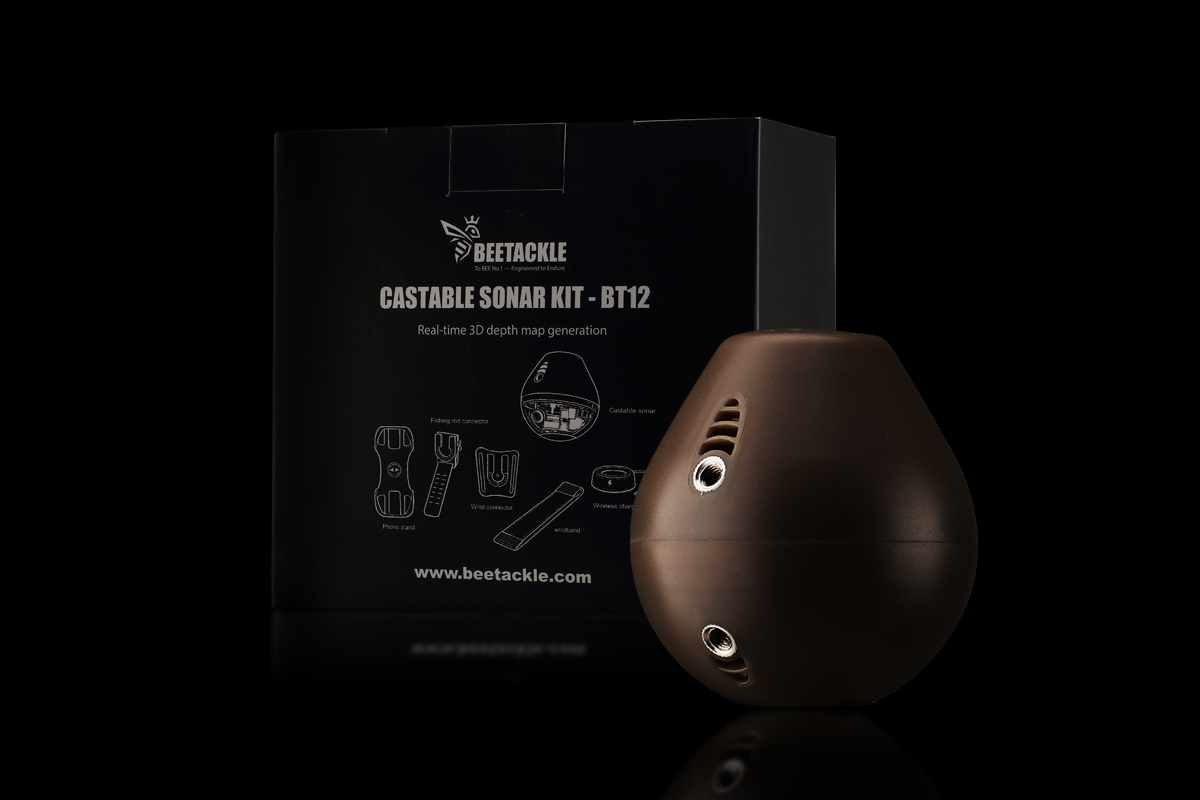
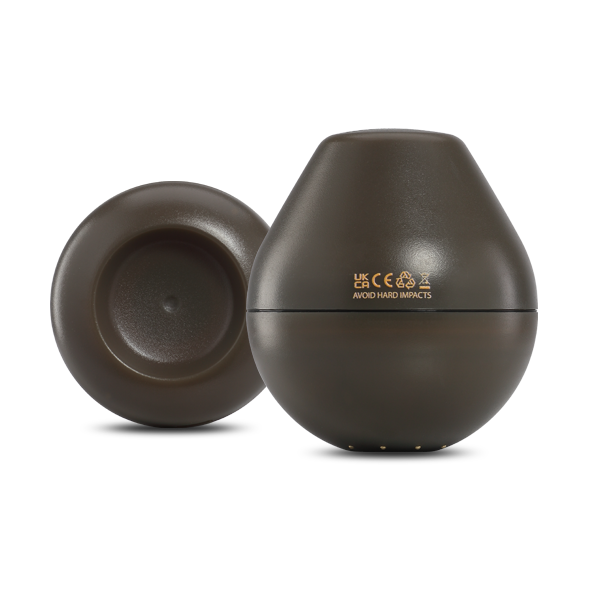
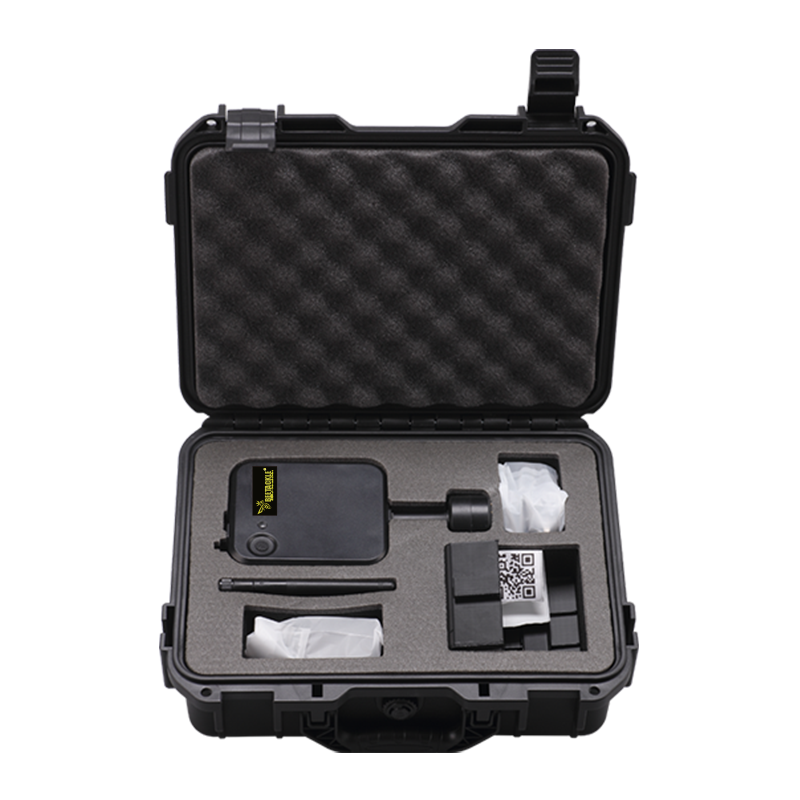
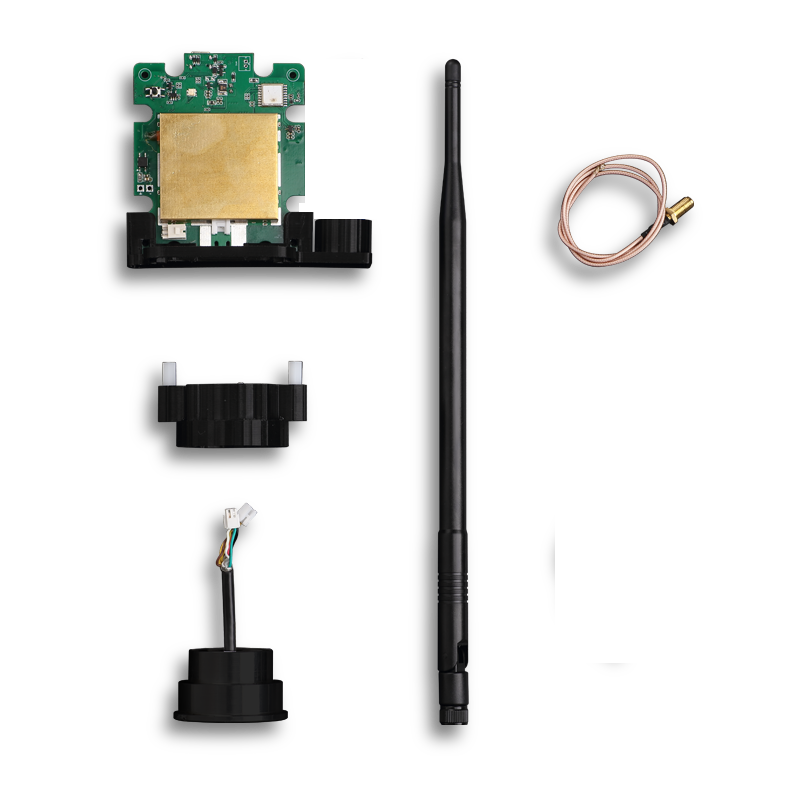
BEETACKLE offers both a mounted sonar kit and an integrated sonar kit option. The mounted sonar kit allows anglers to attach a dedicated sonar module to the boat, while the integrated sonar kit can be installed by an authorised BEETACKLE workshop for a cleaner internal setup.
With sonar on board, anglers can scan areas, generate contour maps, identify underwater features and mark fishing spots more effectively. This turns the bait boat into more than a delivery tool — it becomes part of a smarter location and mapping system.
Integrated weedless propeller system
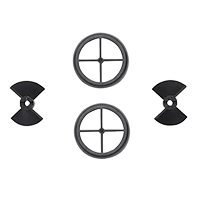
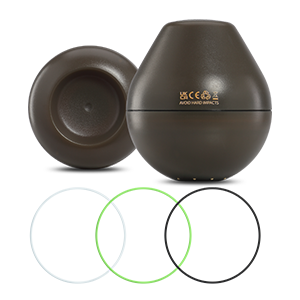
Reliability on the water is critical. Weed, debris and underwater obstacles can quickly turn a good session into a frustrating one. The BEETACKLE bait boat uses an integrated propeller module designed to be weedless and snag-resistant, helping reduce the risk of entanglement and motor issues during use.
For anglers fishing weedy lakes, margins, rivers or pressured venues, this kind of practical design can make a real difference.
Power for longer sessions
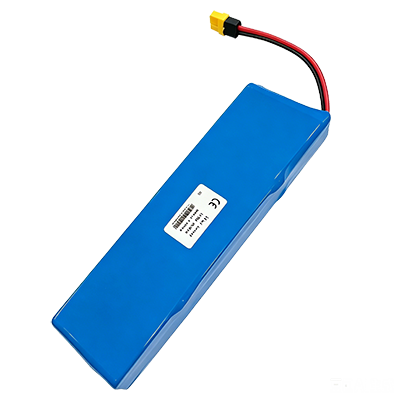
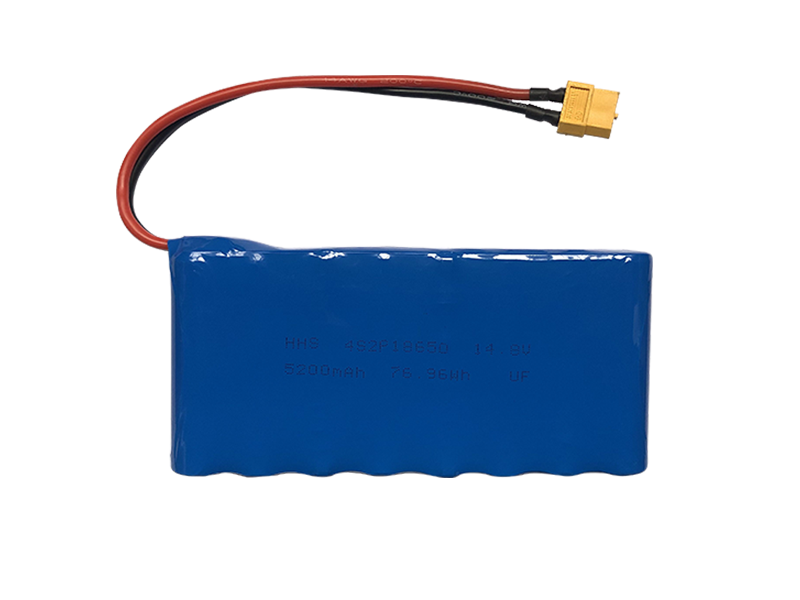
The BEETACKLE Bait Boat Icon Edition includes two 8-battery packs, giving anglers extended runtime compared with earlier versions. According to the product FAQ, the boat can achieve around 2 to 2.5 hours of operation, with an estimated travel range of 7–9 km, while the handset battery can last around 10 hours on a single charge.
This makes it suitable for longer sessions where repeated baiting, spot checking and controlled rig placement are required.
Proven on the water
BEETACKLE states that nearly 10,000 bait boat units have been delivered and proven on the water. The brand’s bait boat development history also dates back to its earlier smart fishing platform, combining app control, GPS autopilot navigation and satellite mapping.
For anglers choosing a bait boat, proven use matters. A bait boat is not just another accessory; it is a key part of the session. It needs to work when conditions are difficult, when the swim is pressured, and when the opportunity matters.
Support, warranty and UK service
After-sales support is another important factor when choosing a bait boat. The BEETACKLE bait boat comes with a 2-year warranty, with battery coverage stated separately, and BEETACKLE provides UK workshop support for warranty and repair service.
For UK anglers, this means the product is supported not only online, but also through a real service route if maintenance or repair is needed.
Is a bait boat right for you?
A bait boat is ideal for anglers who want better rig placement, improved baiting accuracy, repeatable spot control and the option to upgrade into GPS and sonar-based fishing. It is especially useful for carp anglers who fish at range, target specific features, use heavier baiting strategies, or want to build a more consistent approach over time.
The BEETACKLE Bait Boat Icon Edition offers a strong combination of capacity, smart control, upgradeability and practical bank-side usability. From simple one-hand control to Autopilot and Action Group automation, it is built for anglers who want precision without unnecessary complexity.
Final thoughts
A modern bait boat should give you more than distance. It should give you confidence.
With strong bait capacity, GPS upgrade options, app-based control, sonar compatibility, a weedless propulsion design and UK-based support, the BEETACKLE bait boat is built to help anglers fish more accurately, more efficiently and with greater control.
For carp anglers looking to improve their placement, repeatability and watercraft, a reliable bait boat can become one of the most valuable tools in the session.

 (1).png)
.png)
.png)