- Home
- Products
- Bait Boat
- Standard Bait Boat (Urban camo) Baitboat Bag 8 battery pack Handset case Handset V3 Handset V2 USBCHARGER
- Sonar
- Integrated Sonar BaitBoat (BT7) Mount sonar (BT5) Build-in Sonar kit (BT6) WiFi extender (BT4) Phone & controller holder (BT10) Pad & controller tri-stand (BT11)
- Products
- Timeline
- Support
- About us
- Login


BEETACKLE SMART BIVVY LIGHT ULTRA K16
Overview
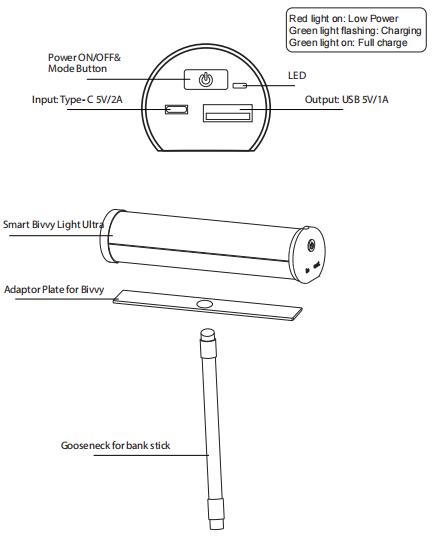
Warnings and information
1. Do not trigger the LED in the close proximity of human or animal eyes.
2. Please ensure that the battery is fully charged and switch off the device if it is
not to be used for a long period of time. If the device is not used within 12 hours, it switches off automatically.
3. Low battery warning. If the battery of the Smart Bivvy Light Ultra is low, the red LED lights up. If this is the case,
please recharge it as soon as possible.
4. Smart Bivvy Light Ultra is protected against splash water. However, try to avoid heavy rain or storms.
5. Do not use the Smart Bivvy Light Ultra in extremely cold or hot environments (below -10 or above 50 degrees).
Specifications
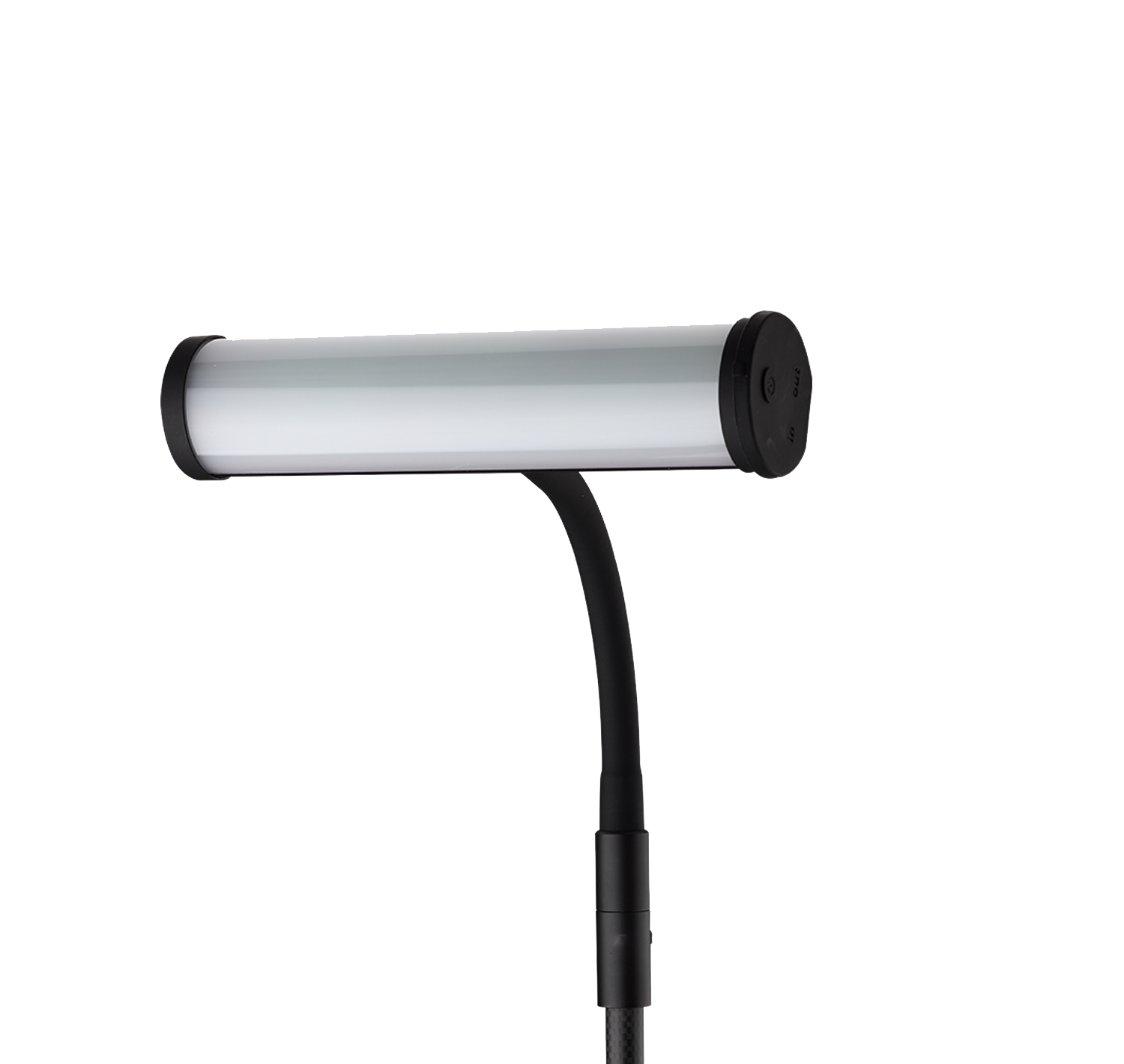
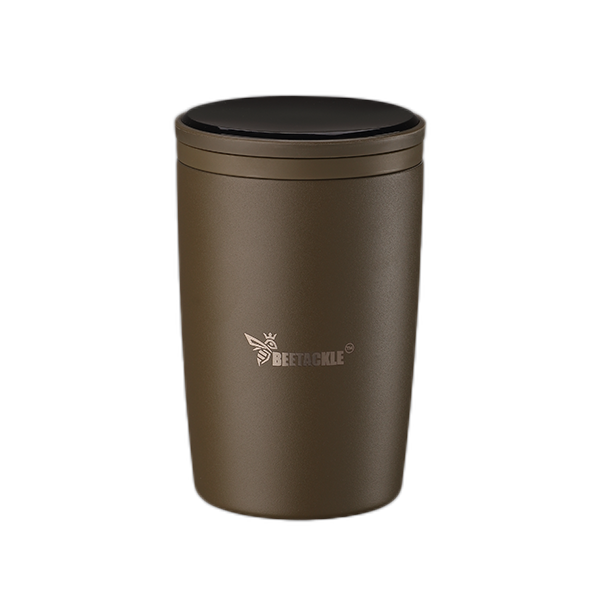
• Length: 180mm, diameter: 40mm, weight: 480g
• Colours manually adjustable: White/Red/Blue/Green
• Colours adjustable via App: Many more
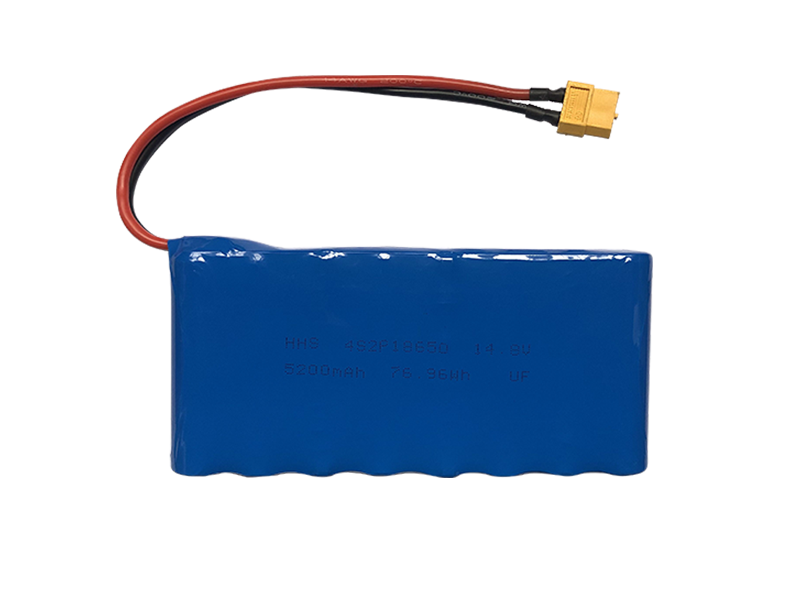
• Battery: Lithium-ion battery (5200mAh)
• Communication mode: 433MHz; BLE
• Charging port: Type-C
• 0-100% dimmable (APP can adjust brightness and save settings)
• Splash water protected
• Controllable via app
• Firmware upgrade via App
• Smart Link Connectivity
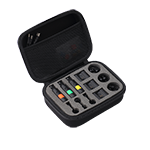
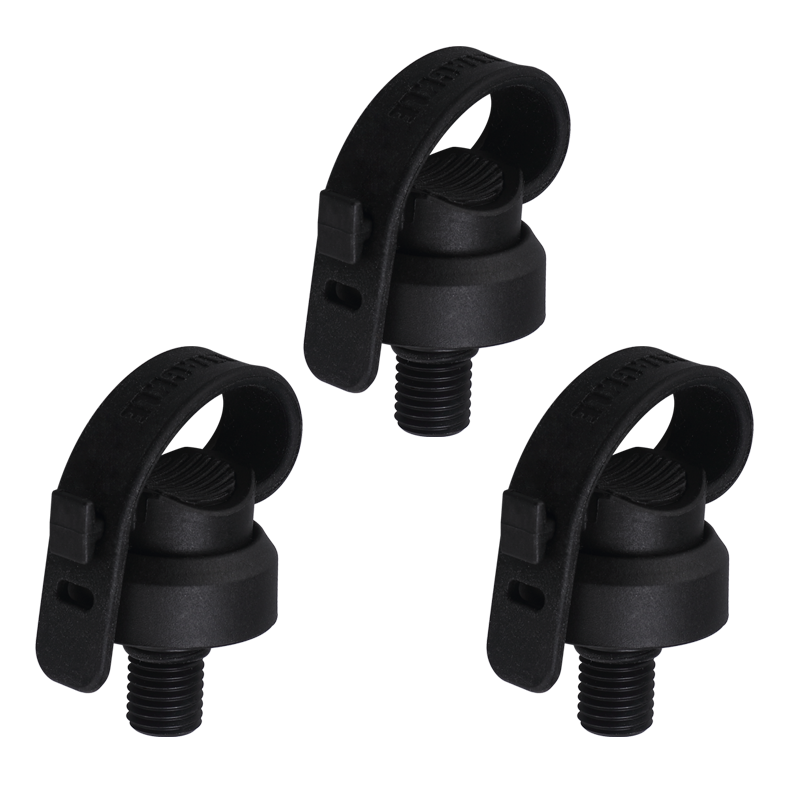
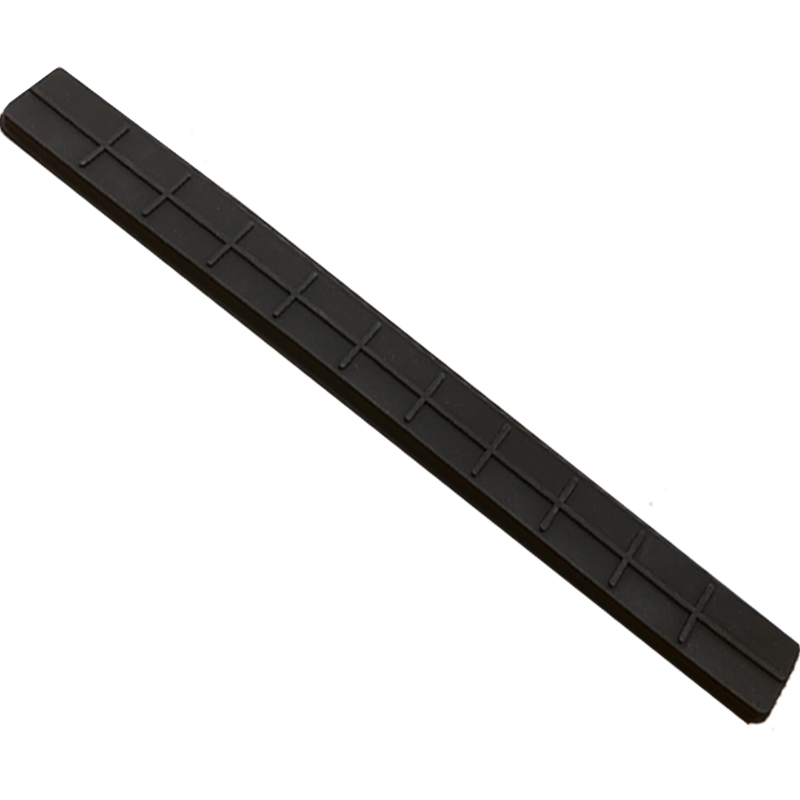
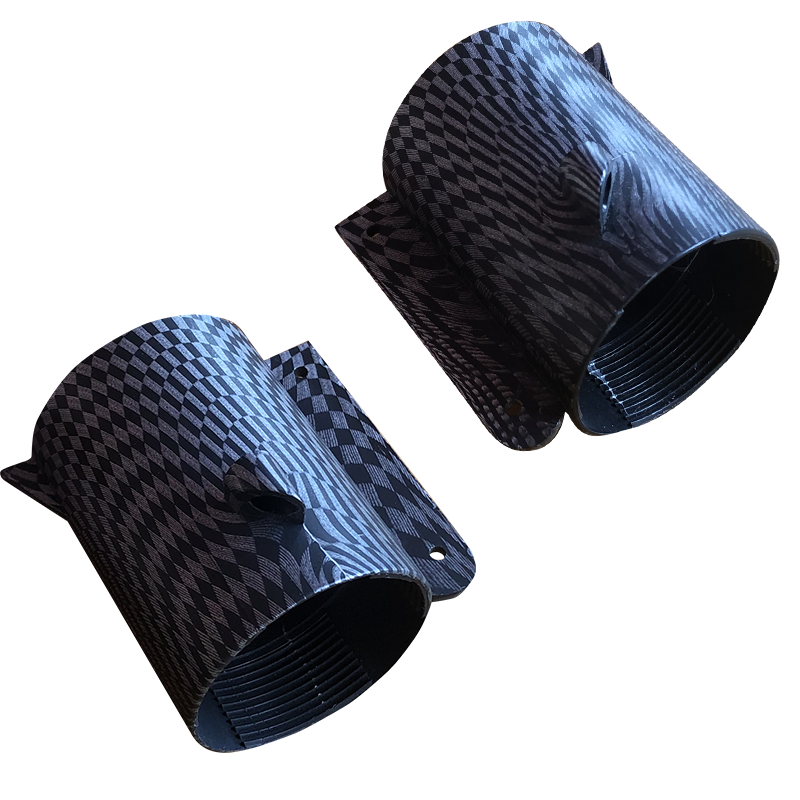
• Hard case, mounting plate and gooseneck included
Register your Receiver
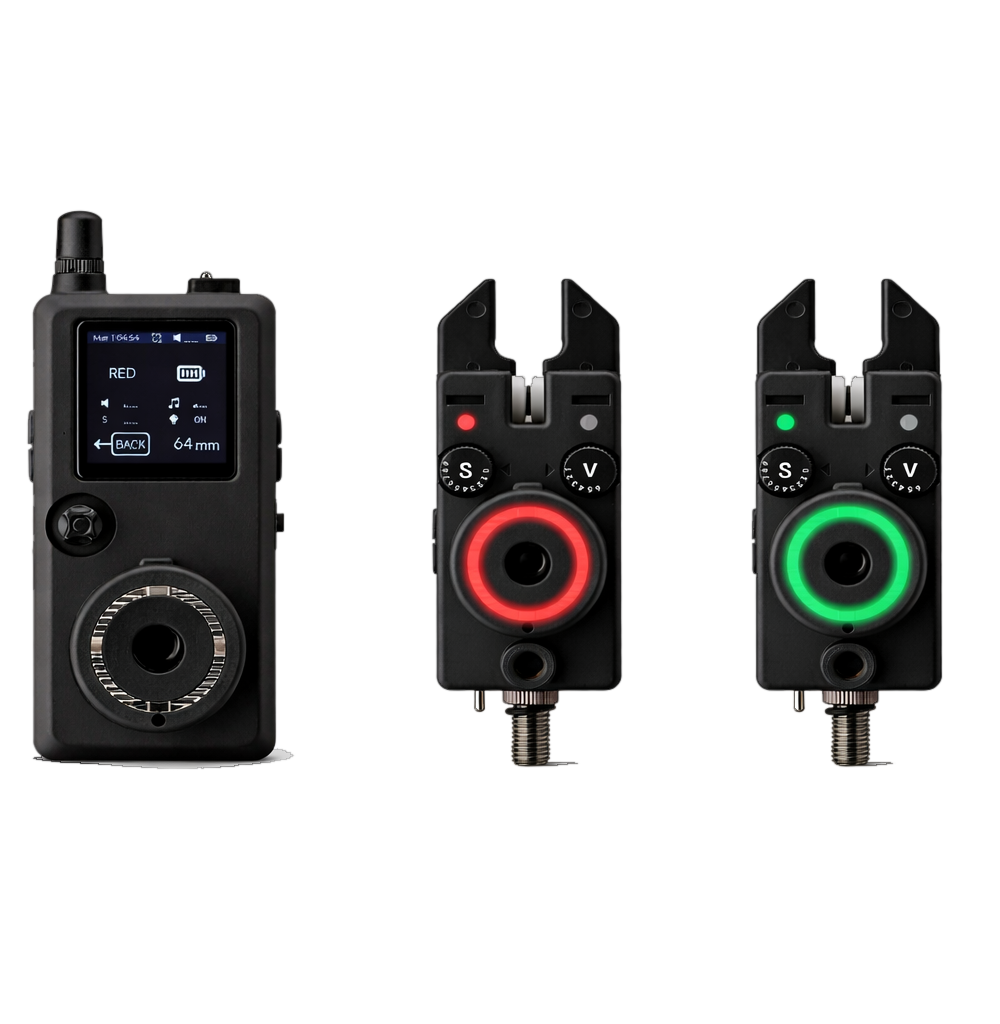
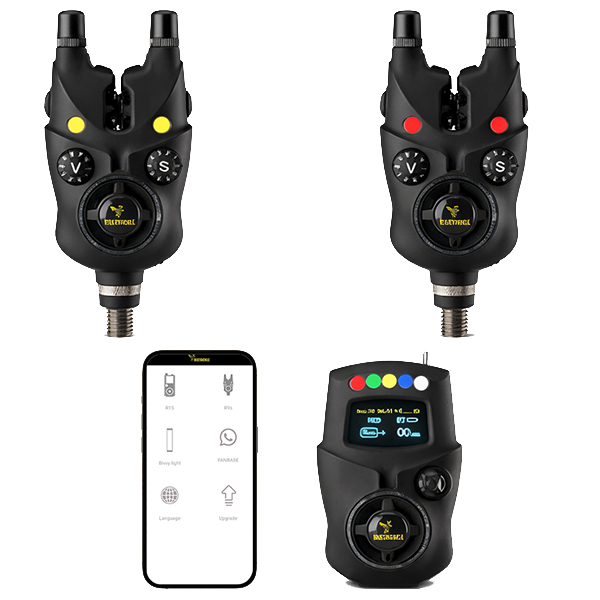
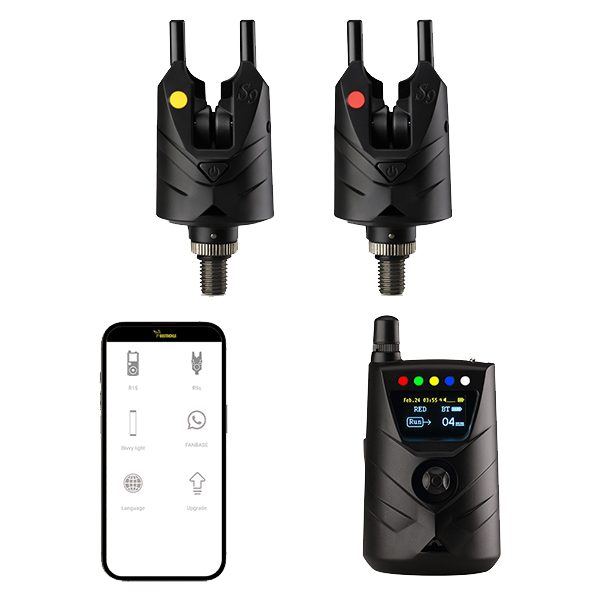
Register your NS9Rpro+ (Receiver), NR9s (Receiver), R15 (Receiver).
1. Press and hold the 'multifunction button' to enter the system menu of NS9Rpro+ receiver.
2. Scroll down to select the 'register alarm' menu.
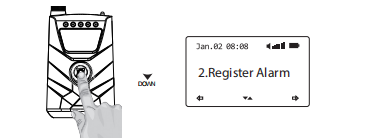
3. Scroll down to 'Reg Light' and confirm by pressing the button on the receiver down.
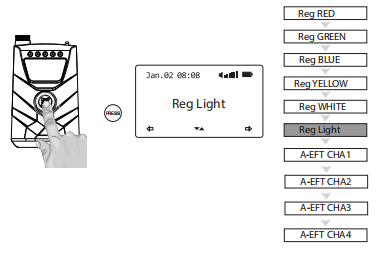
4. The display shows 'waiting...Please press the button twice.
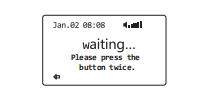
5. Switch on the Smart Bivvy Light Ultra by pressing and holding the button on the Light.
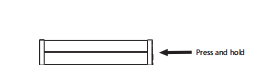
6. Then press the button on the Light twice.
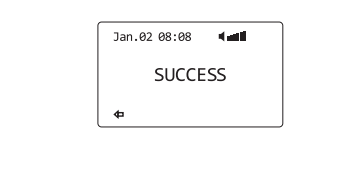
7. Registration was successful when the display shows 'SUCCESS'.
Remote setup via Receiver
1. Press and hold the 'multifunction button' to enter the system menu of NS9Rpro+ (NR9s, R15).
2. Scroll down to select the 'Remote setup' menu.
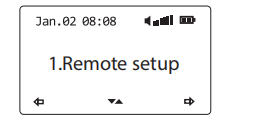
3. Scroll up and down to select 'set Light'.
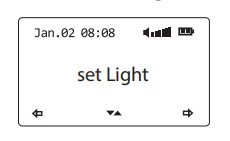
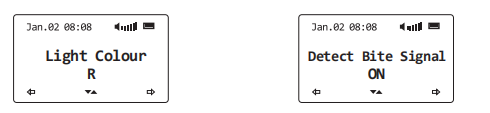
4. Left/right to select the function, up/down to set the value. You can set the colour of the bivvy light to switch on the
bivvy light for all bite alarms when a bite is detected or switch the function off.
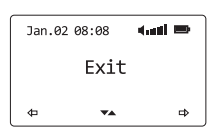
5. Select 'EXIT' to return main menu.
Register your bite alarms
Register your NS9pro+ (bite alarm), NK9s (bite alarm), K15 (bite alarm).
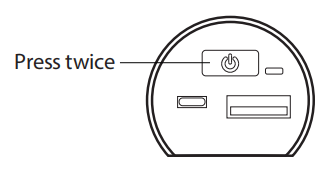
1. Register mode: Press the button twice, the Red LED will flash
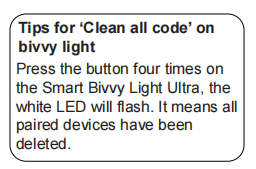
2. Press the button once to navigate through the colour channels (Red/Green/Blue/Yellow/White).
3. Turn wheel of the NS9pro+, NK9s, K15.
4. Registration was successful when the light flashes white.
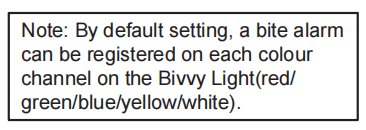
Note: You can register five bite alarms.
Register your NTH9S Anti-Theft Alarm
1. Register mode: Press the button twice, the Red LED will flash
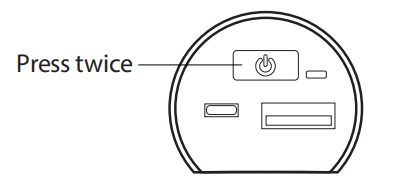
2. Press the button once to navigate through the colour channels. Select a purple channel.
3. Turn on the NTH9s
4. Press the right button once on the NTH9s
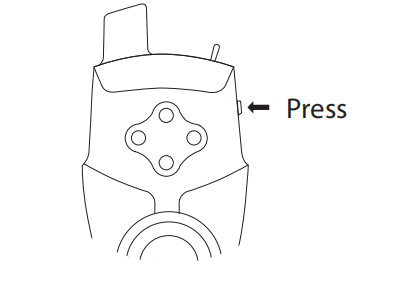
5. Registration was successful when the light flashes white.
Note: You can register four NTH9s.
APP SET
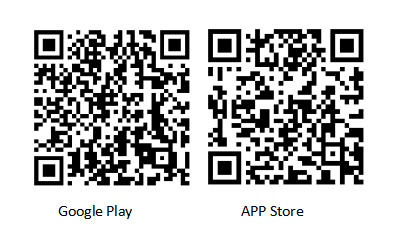
1. Donwload the APP on Google play or Apple store. Then start the APP.
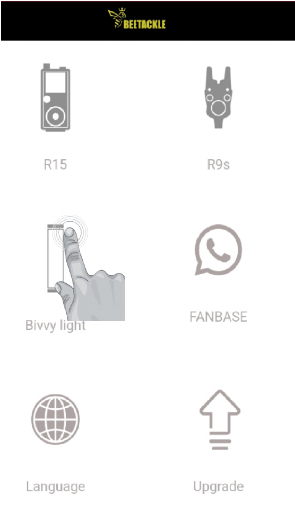
2. Click on the Light on the APP
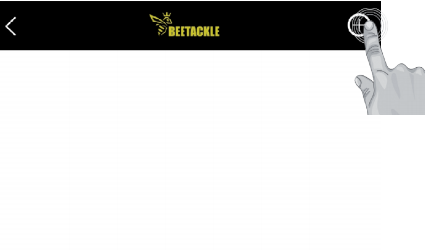
3. Click on the + button to add a Smart Bivvy Light Ultra
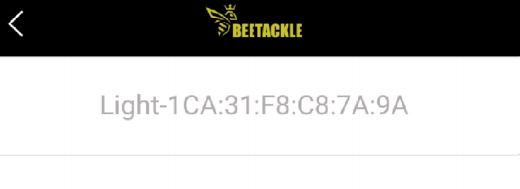
4. A unique number will appear that identifies your light
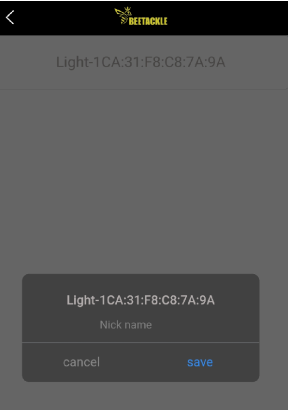
5. Click on the number, then enter a name, click save
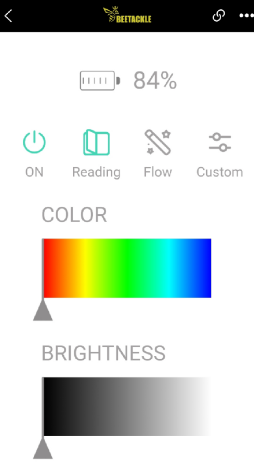
6. You can check the battery level and control the colour and brightness in the APP.
The Smart Bivvy light ultra will save the brightness setting after shutting down.
Device firmware upgrade
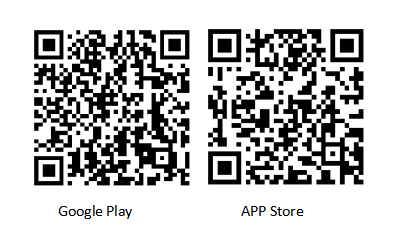
1. Donwload the APP on Google Play or App Store, then launch it.
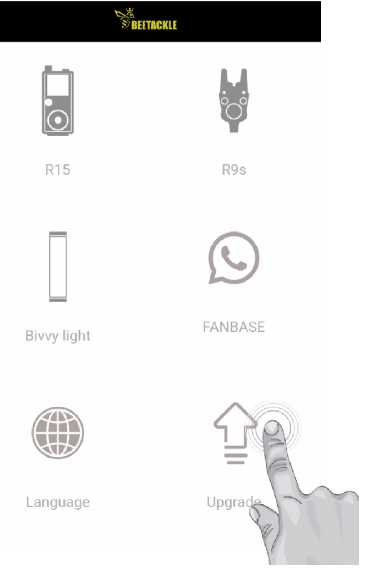
2. Click on the upgrade icon.
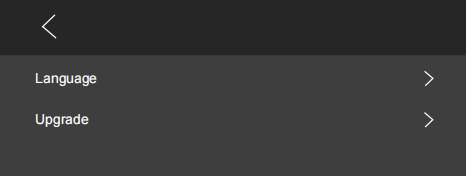
3. Click on Upgrade
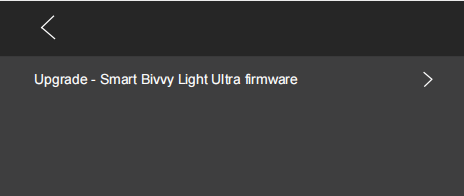
4. Click on Smart Bivvy Light Ultra firmware
5. Wait until the progress bar has reached 100% and indicates that the update was successful.